
Separate where tools run from where the model runs
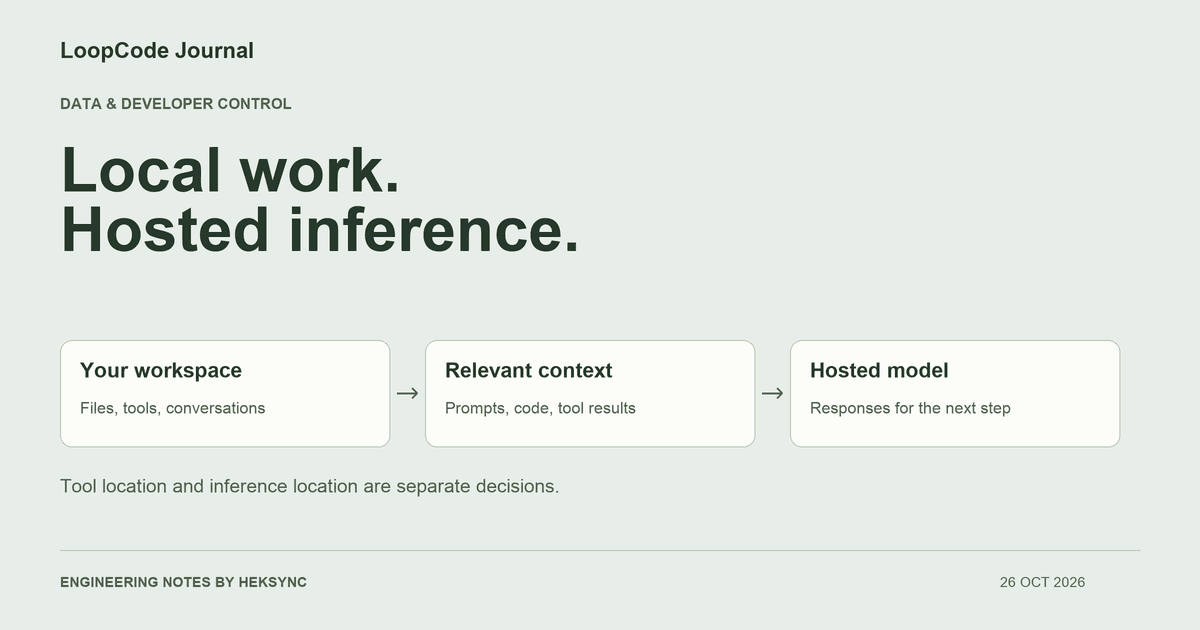
A coding agent has at least two relevant execution locations. One is the environment where it reads files, edits code, runs commands, and stores its conversation. The other is the service that generates its next response. Those can be on the same machine, or they can be separate systems.
LoopCode's engine runs in the workspace environment: on your computer for an ordinary local project, or in the remote workspace when using an appropriate remote editor setup. Its models are hosted. Prompts and the relevant context travel to LoopCode's model service, which forwards them to the selected model. A local desktop interface is therefore compatible with code being processed remotely.
This distinction is useful beyond one product. When a tool says ‘local,’ ask whether it means local files, local indexing, local conversation storage, local tool execution, or local inference. Only the last of those directly answers where model computation happens.
Follow one request through the system
A single task can repeat this loop many times. A command's output can reveal code, environment details, or data even when the original prompt contains none. The relevant boundary is the complete context of each request, not just the text you typed at the start.
LoopCode does not describe this as uploading a repository for remote indexing. That still does not mean an entire project could never appear in context over time: if the agent reads many files, their contents can be sent during the work. Decide whether that processing is appropriate before opening sensitive projects.
| Step | What happens in LoopCode | What to inspect |
|---|---|---|
| Your request | The engine receives your message in the workspace environment. | Whether the message itself contains customer data, secrets, or private requirements. |
| Project context | Instructions, memory, relevant file content, and tool results can enter the model request. | The files the agent reads and the output its tools produce. |
| Hosted inference | The model service forwards the request to the selected hosted model. | The current privacy policy and the applicable provider/account terms. |
| Local action | The engine processes the response and runs permitted tools in the workspace. | The requested command or edit and the permissions that apply. |
| Conversation storage | Conversation history is kept in the interface's local application or state directory. | Other systems that may separately retain account, usage, request, or tool data. |
A file rule is not a shell sandbox
Suppose a workspace contains a .env file and a customer-data directory. A deny rule for the Read tool can stop that tool from reading those paths. It is a useful boundary for file access, but it is not automatically a boundary for every other process or integration.
In particular, a shell command may be able to read a file, and an MCP server may have its own filesystem or network access. LoopCode's documentation distinguishes file rules, command sandboxing, and external tool configuration. Review each surface instead of assuming that one denied Read path protects it everywhere.
{
  "permissions": {
    "deny": [
      "Read(./.env)",
      "Read(./secrets/**)",
      "Read(./customer-data/**)"
    ]
  }
}Test a boundary with dummy data first
A request such as ‘do not read secrets’ is useful task guidance, but it does not replace enforced access controls. The same applies to a success message claiming a secret was protected. Prefer an observable denied action and a documented boundary over reassurance from the model.
For highly sensitive work, a disposable or sanitized checkout can be a better starting point than copying your whole working environment. Remove credentials you do not need, reduce access to production systems, and consider whether a hosted model is permitted for the data at all.
- Create a disposable test project with a clearly fake marker in a test .env file. Do not use a real secret as a probe.
- Configure the deny rules, choose an approval mode, and confirm that the settings actually apply to that workspace.
- Request a read of the dummy file and inspect whether the tool is denied. This tests that read path, not every possible way to access a file.
- Review shell sandbox availability and external MCP permissions separately. Disable tools or network destinations you do not need.
- Inspect command output, attachments, memory, and logs for accidental sensitive content before using a real project.
Ask precise questions about retention and training
Local conversation storage is not a promise that no server keeps any data. Account records, usage metering, service logs, model-provider processing, and third-party tool requests are separate categories. Read the current policies for the service and account configuration you will actually use.
Ask which data categories are processed, where requests are routed, whether request content is retained, how deletion works, and which training or retention terms apply. If you cannot find an answer, ask support before treating an assumption as a guarantee. We do not claim offline inference, universal zero retention, a compliance certification, or a training exemption in this article.
Keep examples of sensitive data concrete: customer tickets, private business logic, database samples, access tokens, and command output can all matter. A repository without obvious secret files can still contain information your organization does not permit sending to a hosted service.
A short checklist before opening a real project
Those answers are more useful than a single ‘local’ label. LoopCode makes the workspace the place where you inspect and control the work; hosted model processing remains part of that workflow. Choose settings and projects with both sides of the architecture in mind.
- I know where tools and inference run in this setup.
- I understand which file contents and tool results can enter a model request.
- I have checked file rules, command access, and external integrations separately.
- The project's data is appropriate for the service's current terms.
- I know how to stop a task and review its command output and changes.
KEEP GOING
A useful next step.
Put it to work in your project.
Desktop, CLI, and VS Code. One LoopCode account. Free to start.