
The most convincing bug can look like success
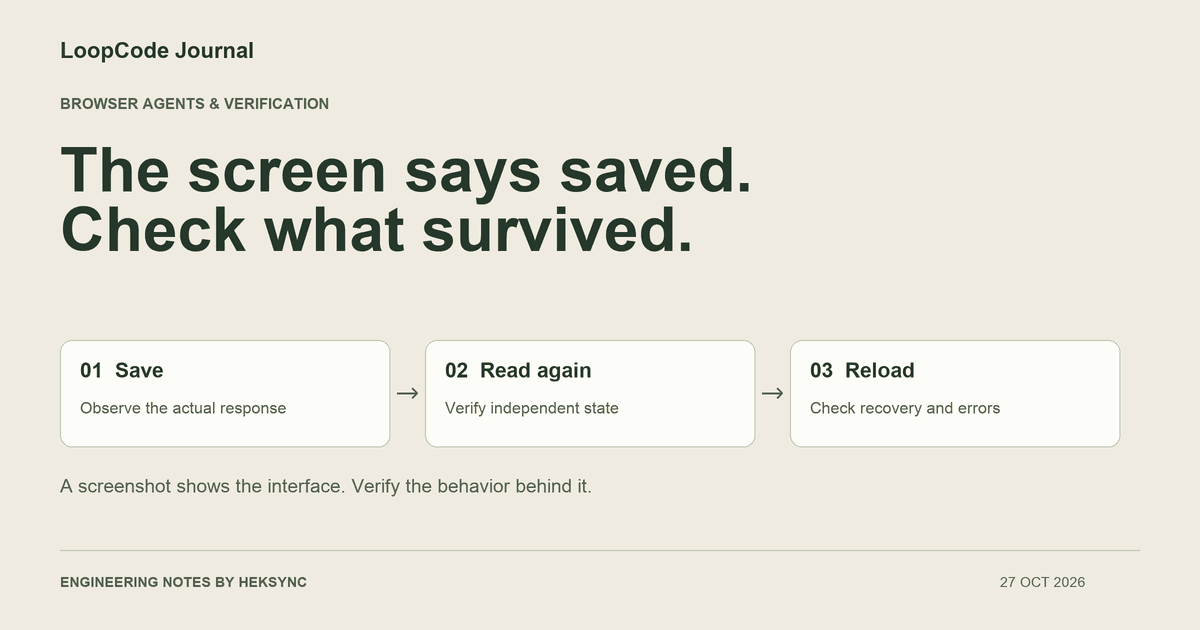
Consider a profile form that updates its local state and displays ‘Saved’ as soon as you click. The request may fail, the server may ignore a field, or the response may contain an error wrapped in an HTTP 200. A screenshot taken at that moment can look exactly like the finished feature.
The question is not whether optimistic interfaces are wrong. They can be useful. The question is what your application does when the write is rejected and whether a fresh read shows the expected value. Verification needs to follow that chain instead of stopping at a reassuring toast.
This is a proposed verification scenario, not a claim that we ran your app or measured a model's testing ability. Use a test account and disposable records. Browser actions can create real data, and an agent's access to a signed-in browser can carry the same privileges as that account.
Write down the claim at each boundary
A reload alone is not proof of server persistence. The client could restore data from local storage or a service worker. Use the project's existing API or data-layer integration checks for the storage assertion, and explain when the browser result was all you could observe. A separate signed-in session or fresh read can be useful when the product's contract requires it.
| Boundary | What to observe | What can still be wrong |
|---|---|---|
| Form interaction | The intended control receives the new value | The wrong field or hidden duplicate was edited |
| Save request | The expected handler receives the intended payload | The service rejects or silently ignores a value |
| Application response | Status and response content match the save contract | The UI reports success before confirming the result |
| Independent read | A fresh request returns the expected value | A client cache or local storage hides a failed write |
| Reload and failure case | State survives as specified; rejection is recoverable | The happy path passed while errors lose user input |
Where LoopCode's browser fits
LoopCode's desktop app includes a Chromium browser that can open the running application, interact with controls, read page state, inspect console output, and capture screenshots. The browser profile keeps sign-ins and site data, which is convenient for development and a reason to choose the test account deliberately.
The CLI also supports driving an installed Chrome or Chromium with its own LoopCode profile. Use loopcode doctor to check browser availability. Browser integration, repository commands, and a configured MCP tool are different access paths; choose the one available in your environment rather than assuming every interface has identical capabilities.
The useful combination is inspection plus action plus verification: read the save handler, make a focused change, run the relevant tests, and exercise the form in a real browser. Where a necessary observation is unavailable, the final report should say so. A screenshot belongs in that report as visual evidence, not as a substitute for the other checks.
Ask for a behavior check, not a victory screenshot
Define the controlled rejection using your project's test harness or a staging fixture. Do not simulate it by breaking a shared production dependency. If you cannot create a reliable failure case, record it as unverified instead of substituting a successful request and calling error handling complete.
Use the local dev server and the dedicated demo account.
Check the profile display-name flow without touching production data.

Inspect the form, save handler, and existing tests before editing.
Change the display name to a unique test value and save once.
Confirm the response using the app's existing API/integration checks.
Reload and confirm the displayed value agrees with a fresh read.
Exercise one controlled rejection in a test environment:
show a useful error, retain the entered value, and avoid false success.

Check keyboard access and the narrow viewport too.
Report exact steps, test output, screenshots, and remaining gaps.
Restore disposable test data when the workflow supports doing so.
Turn the investigation into a repeatable test
Once you know the selectors and the expected behavior, preserve the important checks in the project's existing browser or integration suite. If it uses Playwright, its documented actionability checks wait for suitable elements before actions, and its asynchronous assertions retry until the condition passes or times out. Neither capability knows whether your product actually saved the correct data; the assertion must express that contract.
Prefer an assertion about the saved value and the reload result to a fixed sleep. Keep a separate assertion for the rejected-write behavior. Avoid making the test pass by swallowing request errors, changing the expected result to the current bug, or retrying until an accidental success appears.
Run the final test after the last edit. If it depends on a real external service, document the environment and test data. If it uses mocks, say which boundary they replace. A mocked success response can validate UI behavior without validating the actual service, and both kinds of tests can have a place in the suite.
Finish by checking the experience around the successful action
These checks do not establish a full accessibility audit, load test, or security review. They do make one feature's completion criteria more concrete. LoopCode can help move between the code and the running product so that your review starts with observable behavior rather than a polished claim of completion.
- Keyboard: the user can reach the field, submit, and understand focus after an error.
- Narrow viewport: the field, error, and save control remain usable without clipped content.
- Pending state: the user can tell that work is in progress, and duplicate submissions behave as specified.
- Failure state: the interface reports the failure and preserves recoverable input.
- Evidence: the report distinguishes browser observations, automated checks, mocks, and unverified storage behavior.
KEEP GOING
A useful next step.
Put it to work in your project.
Desktop, CLI, and VS Code. One LoopCode account. Free to start.